1/5
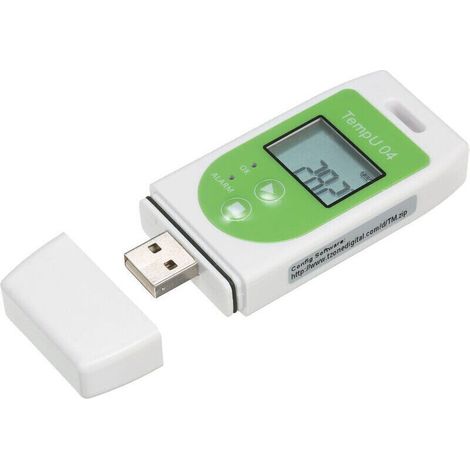
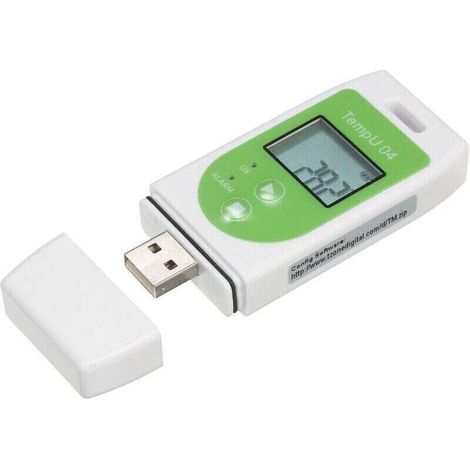
UT330T Temperature and Humidity Recorder, USB Industrial Thermometer, Indoor Temperature Meter
Of which environmental contribution £0.10 including VAT.
Buying for your business?
Negotiated prices excl. VAT up to -20%
Sold by Cuizi
You may also like




Compare with similar items
Product information
Description
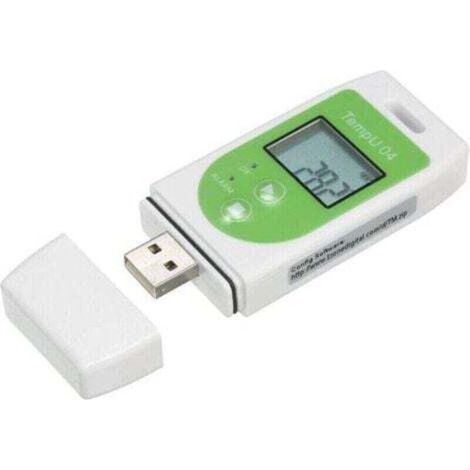
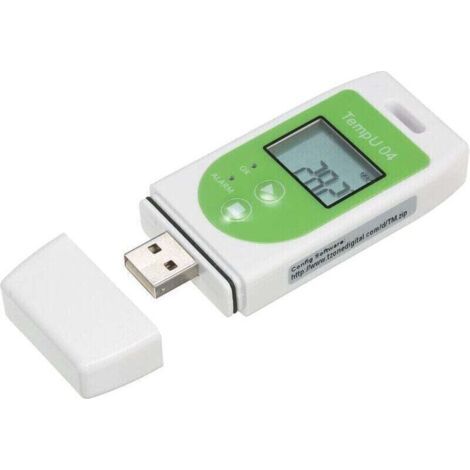
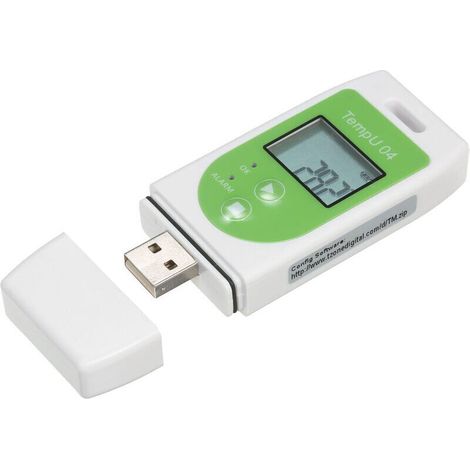
1. Industrial temperature tester, high-precision measurement, accurate measurement data, easy to use.
2. The USB temperature and humidity recorder can test not only the temperature but also the humidity in the room.
3. Wall-mounted design, small body that doesn't take up space, IP65 waterproof, easy to install.
4. It has a wide range of applications; the large 64,000-data-capacity storage is convenient for recording daily measurement data.
5. Automatic memory function, 15-minute automatic storage interval, can record 140 days of measurement data.
Material: ABS
Power Supply: 1 x CR2032 (3V) (not included)
Function UT330T TU330TH
Measurement Range Measurement Accuracy Measurement Accuracy
Temperature -30℃~20.1℃±0.8℃ ±0.4℃
-20.0℃~40.0℃ ±0.4℃
-40.1℃~70.0℃ ±0.8℃
Humidity 0 ~ 99.9% ± 2.5% RH
Resolution temperature: 0.1℃, humidity 0.1% RH
Recording capacity 64000 groups
Recording interval 10s ~ 24h adjustable
Unit/alarm setting The default value is ℃; The alarm type is divided into single/cumulative alarms; the default is a single alarm.
Start Mode: Button/Software (immediate, delayed, timed)
Recording Delay: 0 min ~ 240 min (default 0)
Device ID: 0-255 (default 0)
Alarm Delay: 0 s ~ 10 h (default 0)
Sleep Screen Time: 5 s
Battery Type: CR2032
Working Time: Based on a 15-minute test interval, it can be recorded for 140 days.
Operating Temperature and Humidity: -30℃~70℃; ≤99%, non-condensing.
Storage Temperature: -50℃~70℃.
Protection Rating: IP65. Instructions:
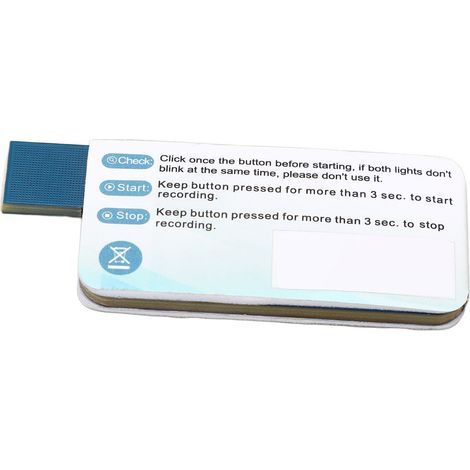
1. Starting the Recorder
The recorder can be configured to start as follows: button start, immediate software start, or scheduled start time. Press the power button: From the recorder's main interface, press and hold the power button for 3 seconds to turn on the recorder. This start method supports delayed start. If a delayed start is set, the recorder will not record data immediately after starting and will wait for the scheduled start time to begin recording. Software start immediately: Once the recorder has configured its settings, it will be switched from the host computer. Disconnect the recorder from the USB interface, and it will begin recording at that time. Scheduled start: Once the recorder is configured with the settings, disconnect the recorder from the computer's USB interface. The recorder will start recording when the set time is reached. The scheduled start method cannot be activated. (Note: If the battery is too low, it may not power on normally and may need to be replaced.)
2. Stopping the recorder
Depending on the configuration, the recorder can be divided into two modes: Key stop and Software stop. Both stop modes include stopping the maximum recording capacity, and Key stop also supports stopping the computer's software. Press the stop button on the recorder's main interface. Press and hold the stop button for 3 seconds to stop the recorder. If Software stop mode is set, this function cannot be used.Software Shutdown: Once the recorder is connected to the software on the host computer, you can click the stop button in the host computer's main interface to shut down the recorder.
3. Marking
When the recorder is in recording mode, press and hold the start button for 3 seconds to perform the marking operation. At this time, the marking icon and the displayed measurement value will flash three times, then jump to the number of marking groups. A total of 10 groups can be marked, allowing users to switch between environmental signs or use them for recognizing other signs.
4. Alarm
When the recorder is running, if no alarm occurs, the green LED will flash at 10-second intervals and the main interface display will be small; In case of an alarm, the red LED flashes every 10 seconds and the main interface displays an X. When the recorder is stopped, the LED is always off.
5. Data Display
1) Displaying Data in Stopped State
After starting the recorder, stop it after recording the data. Insert the USB cable into the PC at this time, and the visible LED will flash, indicating that the PDF report is being generated. Do not disconnect the recorder at this time. Depending on the number of recordings made by the recorder, generating the report may take several seconds to several minutes. Please wait patiently for the report to be generated. Once the PDF report is generated, you can open the POF file on the USB drive to view the data, or open the host computer software and download the data via the host computer software to view and analyze it.
2) Displaying Data in Progress
When the recorder is running, after recording data, insert the 15B port of the PC. The recorder will generate a PDF report for all previously entered data, and the recorder will continue to record data. Data will only be generated when the USB drive is inserted the next time. Once the PDF report is generated, you can open the PDF file on the USB drive to view the data, or you can open the host computer's software and download the data for viewing and analysis. When the recorder is running, as long as there is new data recording, a new PDF report will be generated by inserting the 158 port of the PC. If there is no new recording data, the previously generated PDF report will be retained.
2. The USB temperature and humidity recorder can test not only the temperature but also the humidity in the room.
3. Wall-mounted design, small body that doesn't take up space, IP65 waterproof, easy to install.
4. It has a wide range of applications; the large 64,000-data-capacity storage is convenient for recording daily measurement data.
5. Automatic memory function, 15-minute automatic storage interval, can record 140 days of measurement data.
Specification:
Item Type: Temperature and Humidity Recorder.Material: ABS
Power Supply: 1 x CR2032 (3V) (not included)
Function UT330T TU330TH
Measurement Range Measurement Accuracy Measurement Accuracy
Temperature -30℃~20.1℃±0.8℃ ±0.4℃
-20.0℃~40.0℃ ±0.4℃
-40.1℃~70.0℃ ±0.8℃
Humidity 0 ~ 99.9% ± 2.5% RH
Resolution temperature: 0.1℃, humidity 0.1% RH
Recording capacity 64000 groups
Recording interval 10s ~ 24h adjustable
Unit/alarm setting The default value is ℃; The alarm type is divided into single/cumulative alarms; the default is a single alarm.
Start Mode: Button/Software (immediate, delayed, timed)
Recording Delay: 0 min ~ 240 min (default 0)
Device ID: 0-255 (default 0)
Alarm Delay: 0 s ~ 10 h (default 0)
Sleep Screen Time: 5 s
Battery Type: CR2032
Working Time: Based on a 15-minute test interval, it can be recorded for 140 days.
Operating Temperature and Humidity: -30℃~70℃; ≤99%, non-condensing.
Storage Temperature: -50℃~70℃.
Protection Rating: IP65. Instructions:
1. Starting the Recorder
The recorder can be configured to start as follows: button start, immediate software start, or scheduled start time. Press the power button: From the recorder's main interface, press and hold the power button for 3 seconds to turn on the recorder. This start method supports delayed start. If a delayed start is set, the recorder will not record data immediately after starting and will wait for the scheduled start time to begin recording. Software start immediately: Once the recorder has configured its settings, it will be switched from the host computer. Disconnect the recorder from the USB interface, and it will begin recording at that time. Scheduled start: Once the recorder is configured with the settings, disconnect the recorder from the computer's USB interface. The recorder will start recording when the set time is reached. The scheduled start method cannot be activated. (Note: If the battery is too low, it may not power on normally and may need to be replaced.)
2. Stopping the recorder
Depending on the configuration, the recorder can be divided into two modes: Key stop and Software stop. Both stop modes include stopping the maximum recording capacity, and Key stop also supports stopping the computer's software. Press the stop button on the recorder's main interface. Press and hold the stop button for 3 seconds to stop the recorder. If Software stop mode is set, this function cannot be used.Software Shutdown: Once the recorder is connected to the software on the host computer, you can click the stop button in the host computer's main interface to shut down the recorder.
3. Marking
When the recorder is in recording mode, press and hold the start button for 3 seconds to perform the marking operation. At this time, the marking icon and the displayed measurement value will flash three times, then jump to the number of marking groups. A total of 10 groups can be marked, allowing users to switch between environmental signs or use them for recognizing other signs.
4. Alarm
When the recorder is running, if no alarm occurs, the green LED will flash at 10-second intervals and the main interface display will be small; In case of an alarm, the red LED flashes every 10 seconds and the main interface displays an X. When the recorder is stopped, the LED is always off.
5. Data Display
1) Displaying Data in Stopped State
After starting the recorder, stop it after recording the data. Insert the USB cable into the PC at this time, and the visible LED will flash, indicating that the PDF report is being generated. Do not disconnect the recorder at this time. Depending on the number of recordings made by the recorder, generating the report may take several seconds to several minutes. Please wait patiently for the report to be generated. Once the PDF report is generated, you can open the POF file on the USB drive to view the data, or open the host computer software and download the data via the host computer software to view and analyze it.
2) Displaying Data in Progress
When the recorder is running, after recording data, insert the 15B port of the PC. The recorder will generate a PDF report for all previously entered data, and the recorder will continue to record data. Data will only be generated when the USB drive is inserted the next time. Once the PDF report is generated, you can open the PDF file on the USB drive to view the data, or you can open the host computer's software and download the data for viewing and analysis. When the recorder is running, as long as there is new data recording, a new PDF report will be generated by inserting the 158 port of the PC. If there is no new recording data, the previously generated PDF report will be retained.
Package List:
1 x Temperature and Humidity Recorder (battery not included)
1 x Mounting Bracket
2 x Screws
1 x Manual
Features
- BrandOTHERS
- Availability of spare parts0.000912 year(s)
- Width15 cm
- Length15 cm
- ManoMano ReferenceME220746361
- MMID195955746925
- Product codeBT-UK2025YS-69705
- EAN9140747311050
You are here:
'/%3E%3C/svg%3E)